Invite-only beta. Access is currently limited to invited testers. Request beta access. Already invited? Sign in.
Get running in a couple of minutes
Garagent is hosted — there's nothing to install and nothing to configure. Sign in and your office is ready.
1. Sign in
After receiving an invitation, click Sign in and continue with your invited Google account. See beta access and credits for the published credit information. There's no separate password to create or remember.
2. Your office starts empty
A brand-new office opens to zero rooms and zero agents — nothing is auto-created for you. Two steps to get somewhere interesting:
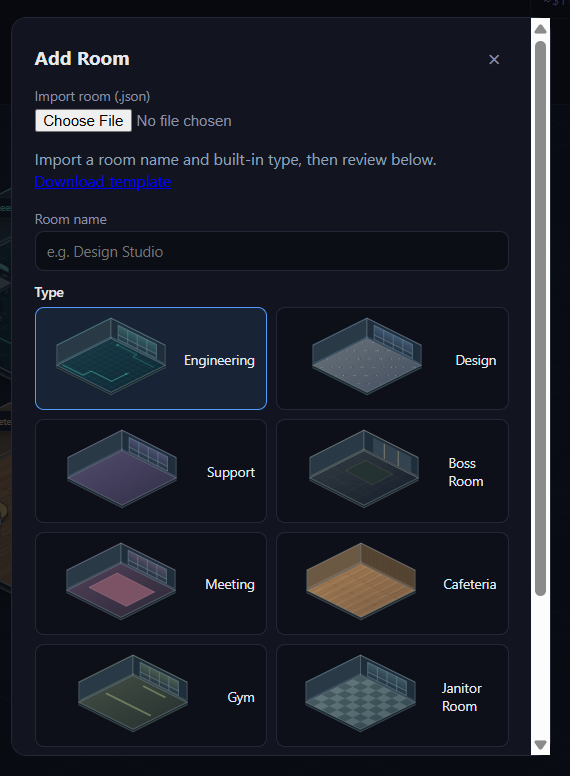
- Add a room. Click + Add Room and create one — Engineering, Design, whatever fits.
-
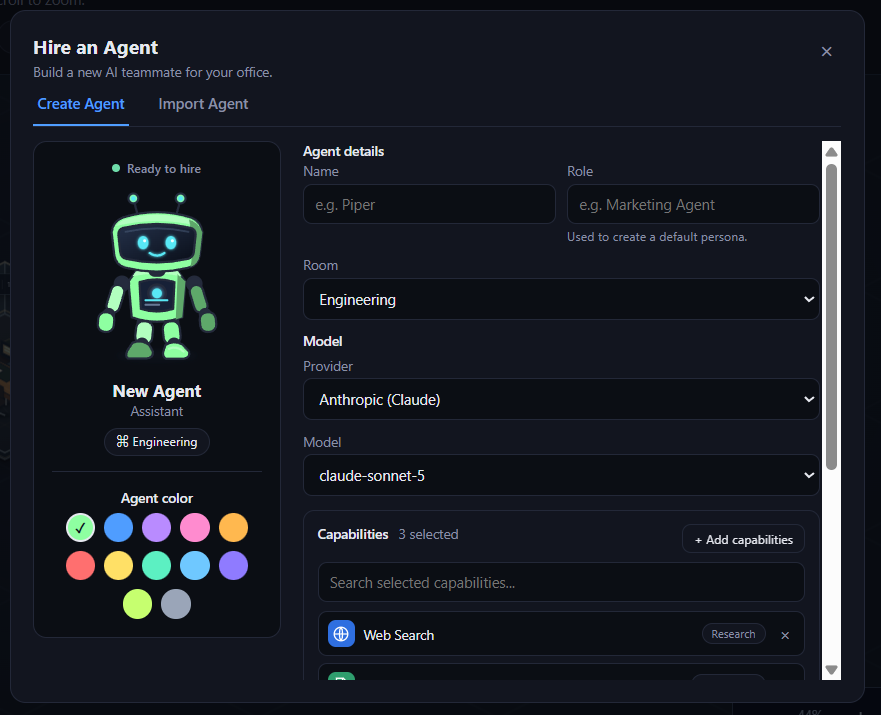
Hire or import an agent. Click + Hire Agent. Use Create Agent to build one from scratch
(name, role, room, provider/model, capabilities), or the Import Agent tab to load a
previously exported
.agent.jsonpersona. Imported agents land on the Bench — use Activate... to put one to work in a room.
The first time you assign a task, your browser will ask permission to show notifications — allow it for an OS-level popup when a task finishes, not just an in-page toast.
3. Keep an eye on usage
Every chat turn, task, and project step is a real model call, debited from your account's credit balance in real time — the top bar's usage badge always shows where you stand. See Features → Usage & billing for how it's tracked, and what happens if your balance runs low.
Next
✨ Features
A tour of every screen — Chat, Work, Skills, Memory, Schedule, and more.
🧰 Capabilities
What each real tool an agent can be granted actually does.